
A Calculated Environmental Metric uses a calculation to generate a value from an existing Source. The calculations covered in this guide may reference:
- Source Environmental Metrics
- Process Lines
- Previously created Calculated Environmental Metrics
Before You Begin
Before completing the import sheet, confirm that the following items have already been configured in EHS-Dashboard:
- Facilities
- Metric Categories
- Source Environmental Metrics used in the calculations
- Process Lines used in the calculations
- Sources assigned to the applicable Process Lines
- Process Line allocation percentages
Every Source referenced in a calculation must already exist in EHS-Dashboard.
NOTE: Do not attempt to configure a Calculated Environmental Metric until all Sources used in its calculation exist in the EHS‑Dashboard.
If you need to configure Source Environmental Metrics first, use the Source Environmental Metric Import Sheet guide.
If you need to configure Source Materials, use these ChemTrack Knowledge Base documents.
If you need to configure Process Lines, use the How to Create and Configure Process Lines Knowledge Base document.
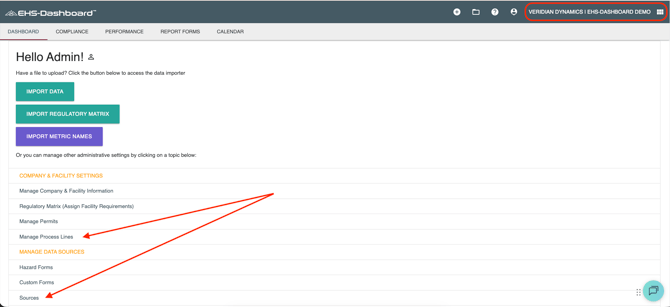
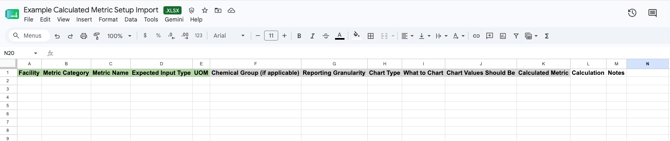
Step 1: Create the Required Column Headers
Add the following column headers to the first row of the spreadsheet:
- Facility
- Metric Category
- Metric Name
- Expected Input Type
- UOM
- Chemical Group (if applicable)
- Reporting Granularity
- Chart Type
- What to Chart
- Chart Values Should Be
- Calculated Metric
- Calculation
NOTE: Do not rename the columns.
Notes Column
The spreadsheet may also include a Notes column to document:
- Source definitions
- Source IDs
- Variable definitions
- Conversion factors
- Emission factors
- Allocation percentages
- Factor units
- Source documents
- Regulatory citations
- Calculation assumptions
Note: Download a Template Calculated Environmental Metric spreadsheet here.
Step 2: Add One Calculated Metric per Row
| Column | Column Header | Instructions |
|---|---|---|
| A | Facility | Required. Enter the exact facility name used in EHS-Dashboard. |
| B | Metric Category | Required. Use an existing category name exactly as it appears in EHS-Dashboard. |
| C | Metric Name | Required. Enter a clear, specific name for the Calculated Environmental Metric. |
| D | Expected Input Type | Enter the input type required by the import template. Options include Quantity and Meter Reading. |
| E | UOM | Required. Enter the unit of measure for the final calculated result. |
| F | Chemical Group (if applicable) | Enter an approved Chemical Group name. Leave blank when no Chemical Group applies. |
| G | Reporting Granularity | Required. Select Quarterly, Monthly, Weekly, Daily, or Annually. |
| H | Chart Type | Required. Select how the metric should be displayed or select None. |
| I | What to Chart | Required only when Chart Type is anything other than None. |
| J | Chart Values Should Be | Required only when Chart Type is anything other than None. |
| K | Calculated Metric | Enter Yes to identify the metric as calculated. |
| L | Calculation | Required. Enter the calculation using properly formatted Source references, factors, and mathematical operators. |
| M | Notes | Optional. Enter concise information that will help identify or review the metric. |
Do not combine multiple calculated results in one row.
Facility:
Enter the facility name exactly as it appears in EHS-Dashboard.
If the metric is intentionally shared or aggregated across multiple facilities, separate the exact facility names with a comma followed by one space:
Example Facility East, Example Facility West
Confirm that the Sources referenced by the calculation are available for the assigned facility or facilities.
Do not use abbreviations, semicolons, or line breaks.
Metric Category
Use an existing Metric Category name exactly.
Illustrative examples include:
- Air Emissions
- Greenhouse Gas Emissions
- Resource Consumption
- Production Performance
If the required category does not exist, create it before completing the import sheet. Refer to Managing Categories for Metrics for instructions.
Metric Name
Enter a clear, specific name for the Calculated Environmental Metric.
Illustrative examples include:
- Calculated Generator NOx Emissions
- Estimated Boiler CO2e Emissions
- Calculated Production Emissions
- Allocated Process VOC Emissions
The name should make it easy to distinguish the Calculated Environmental Metric from the Source Environmental Metric used in its calculation.
Expected Input Type
Enter: Quantity
A Calculated Environmental Metric generates a quantity from its calculation rather than receiving a cumulative meter reading.
Unit of Measure
Enter the unit of measure for the final calculated result.
Illustrative examples include:
- lbs
- tons
- kg
- gallons
- therms
- MMBtu
- hours
Example: If the calculation converts pounds to tons, enter: tons
The UOM must represent the result after the complete calculation has been performed.
Chemical Group (if applicable)
Enter the applicable Chemical Group name exactly.
Options include:
- VOC
- HAP
- HOC
- HYC
- Acid
- Ammonia
- Greenhouse Gas
- PM
- CO
- CO2
- CO2e
- SO2
- NOx
- RTAP
When multiple Chemical Groups apply:
- Enter each name exactly.
- Separate the names with a comma followed by one space.
Example: Greenhouse Gas, CO2, CO2e
Do not use semicolons or line breaks.
Leave the field blank when a Chemical Group does not apply.
Reporting Granularity
Enter the reporting frequency for the Calculated Environmental Metric.
Options include:
- Quarterly
- Monthly
- Weekly
- Daily
- Annually
Enter the selected option exactly as shown.
Chart Type
Select one of the following:
- None
- Line
- Simple Bar
- Stacked Bar
Select None if the metric should not be charted automatically.
NOTE: There are other opportunities within the system to Create and Configure Widgets in Workspaces if additional charting is desired.
If Chart Type is None, the following fields are not required and may be left blank:
-
What to Chart
-
Chart Values Should Be
If Chart Type is anything other than None, complete both fields.
Complete the Chart Settings, A Needed
What to Chart
Complete this field only when Chart Type is anything other than None.
Options may include:
- Usage
- Cost
Leave this field blank when Chart Type is None.
Chart Values Should Be
Complete this field only when Chart Type is anything other than None.
Options may include:
- Sums
- Averages
Leave this field blank when Chart Type is None.
An illustrative chart configuration would be:
- Chart Type:
Line - What to Chart:
Usage - Chart Values Should Be:
Sums
Identify the Metric as Calculated
In the Calculated Metric column, enter:
TRUE
This tells the EHS‑Dashboard that the metric’s value will be generated from a calculation.
Remember:
Source Environmental Metrics use FALSE.
Calculated Environmental Metrics use TRUE.
Step 3: Build the Calculation
The Calculation column tells EHS-Dashboard which Sources to use and how their values should be combined.
Enter the complete calculation using:
- Source Environmental Metric references
- Process Line references
- Previously created Calculated Environmental Metric references
- Numerical factors
- Mathematical operators
- Parentheses, when needed
The Source name is not entered in the calculation. Use the applicable Source ID.
Mathematical Operators
| Operator | Meaning |
|---|---|
* |
Multiply |
/ |
Divide |
+ |
Add |
- |
Subtract |
( ) |
Control the order of operations |
Source Reference Formats
| Source type | Required format | Illustrative example |
|---|---|---|
| Source Environmental Metric | {Source Metric ID} |
{16420}x12.34 |
| Previously created Calculated Environmental Metric | {Calculated Metric ID} |
{16425}/2000 |
| Process Line | `Process Line ID:Usage Category:% Concentration` |
`975:ug:high`x12.34/2000 |
The curly braces { } and backticks ` ` are required. They tell EHS-Dashboard which type of Source is being used.
Do not enter the Source name in place of its ID.
Using a Source Environmental Metric in the Calculation
Use this format: {Source Metric ID}
Illustrative calculation: {16420}x12.34
In this example:
16420is the Source Environmental Metric ID.{ }identify the number as a metric reference.12.34is an illustrative factor.
How to Find a Source Environmental Metric ID
- Navigate to Admin.
- Select Sources.
- Add the ID column to the Sources table.
- Locate the applicable Source Environmental Metric.
- Copy the ID displayed in the ID column.
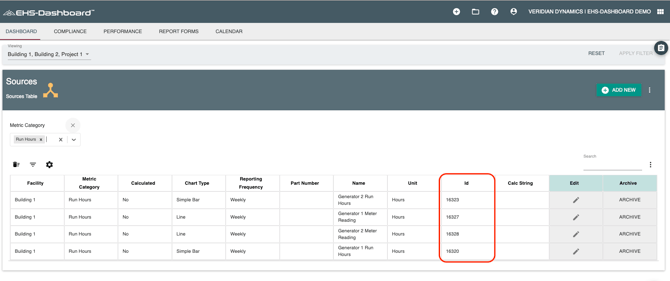
6. Enter the ID between curly braces in the Calculation in the spreadsheet as appropriate for the calculation column.
For example, if the ID column displays 16420, enter: {16420}
Do not use the:
- Source Environmental Metric name
- Spreadsheet row number
- Meter name
- Metric Category ID
Using a Previously Created Calculated Environmental Metric
A calculation may use the result of a previously created Calculated Environmental Metric.
Use the same reference format: {Calculated Metric ID}
Illustrative calculation: {16425}/2000
The referenced Calculated Environmental Metric must already exist before the dependent metric can be imported.
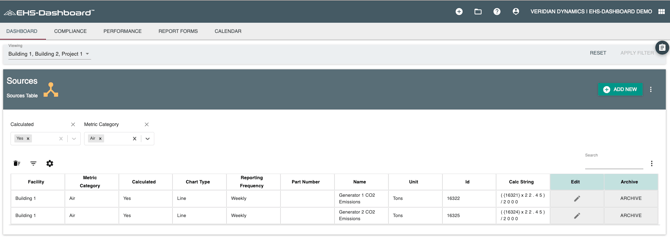
How to Find a Calculated Environmental Metric ID
- Import or configure the prerequisite Calculated Environmental Metric.
- Confirm that it was created successfully.
- Navigate to Admin > Sources.
- Add the ID column to the Sources table.
- Locate the previously created Calculated Environmental Metric.
- Enter its ID between curly braces in the dependent calculation.
Do not use the spreadsheet row number in place of the Calculated Environmental Metric ID.
Using a Process Line in the Calculation
Use this format: `Process Line ID:Usage Category:% Concentration`
Illustrative calculation: `975:ug:high`x12.34/2000
In this reference:
| Component | Meaning |
|---|---|
975 |
Process Line ID |
ug |
Usage Category |
high |
Percentage-concentration selection |
| Backticks | Identify the complete reference as a Process Line |
The backticks must surround the complete Process Line reference.
A backtick looks like this: `
It is not an apostrophe: '
Usage Category Codes
| Code | Usage Category |
|---|---|
ae |
Air Emission |
sg |
Storage |
ug |
Usage |
saw |
Waste |
ww |
Wastewater |
Select the code that corresponds to the category of records the calculation should use.
Percentage-Concentration Codes
| Code | Percentage concentration |
|---|---|
low |
Low |
mid |
Midpoint |
high |
High |
Select the concentration required by the applicable calculation methodology.
How to Find a Process Line ID
- Navigate to Admin.
- Select Manage Process Lines.
- Locate the applicable Process Line.
- Click its edit icon.
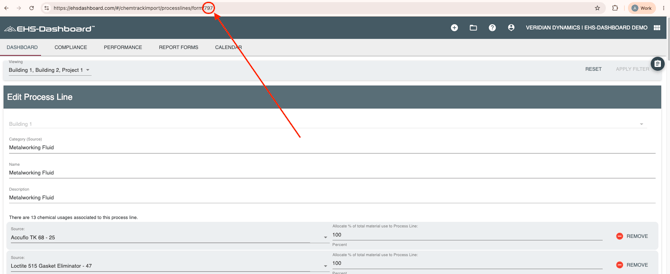
- Review the page address in the browser’s address bar.
- Use the last number in the URL as the Process Line ID.
- Add the applicable Usage Category and concentration codes.
For example, if the URL ends in:
processlines/form/975
the Process Line ID is: 975
If the calculation uses Usage records and the high concentration, enter: `975:ug:high`
Important Formatting Rules
- Use the Source ID, not the Source name.
- Enclose Source Environmental Metric IDs in curly braces:
{16420}. - Enclose previously created Calculated Environmental Metric IDs in curly braces:
{16425}. - Enclose Process Line references in backticks:
`975:ug:high`. - Include both the opening and closing characters.
- Do not replace backticks with apostrophes.
- Do not add the Process Line name to the reference.
- Confirm the Usage Category and concentration codes before importing the calculation.
Step 4: Complete a Final Verification
Before submitting the import sheet, confirm that:
- Each row represents one Calculated Environmental Metric.
- Facility names match EHS-Dashboard exactly.
- Multiple facilities are separated by a comma followed by one space.
- Metric Categories already exist and are entered exactly.
- Metric Names are clear and specific.
- The UOM represents the final calculated result.
- Chemical Groups use the approved names.
- Multiple Chemical Groups are separated by a comma followed by one space.
- Reporting Granularity uses an approved option.
- Chart Type contains an approved option or
None. - Calculated Metric is entered as
Yes. - Source names have been replaced with the correct system IDs in the calculation.
- Source Environmental Metric IDs & Previously created Calculated Environmental Metric IDsare enclosed in curly braces.
- Process Line references are enclosed in backticks.
- Process Line Usage Category and concentration codes are correct.
- Every opening brace, backtick, and parenthesis has a matching closing character.
- The calculation is complete and entered in the correct row.
Outcome
Once completed and verified, the spreadsheet is ready for import into EHS-Dashboard. The import will create the Calculated Environmental Metrics with their assigned facilities, categories, units of measure, reporting settings, and calculations using the referenced Source Environmental Metrics and Process Lines.