
Data Entry Options
Chemical Usage, Storage, and Waste data can be entered using one of the following methods.
Option 1: Add a Single Record Using the Chemical Data Form
Recommended when entering one or a few records manually.
Option 2: Import a Data Set Using the Data Importer
Recommended when uploading larger data sets or historical records.
Option 1: Add a Single Record
Use this method when entering individual usage, storage, or waste records directly into the system.
To add a single record:
-
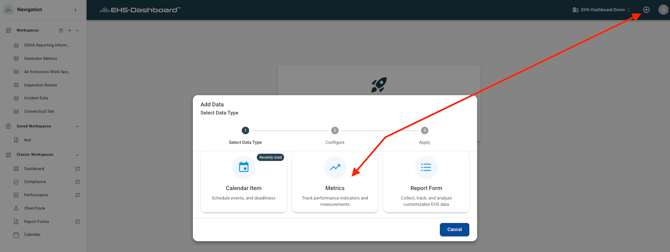
Click Add Data in the upper right corner.
-
Select Metrics.
-
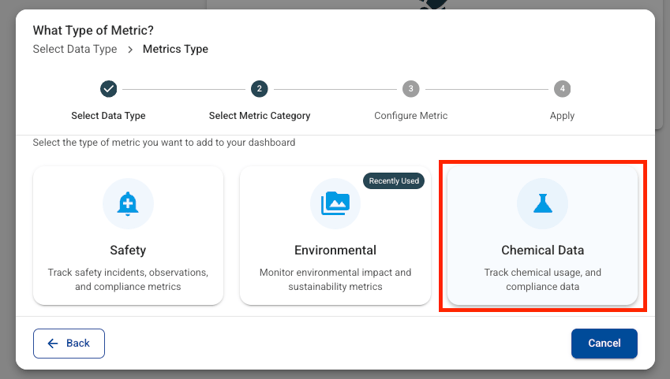
Choose Chemical Data.
-
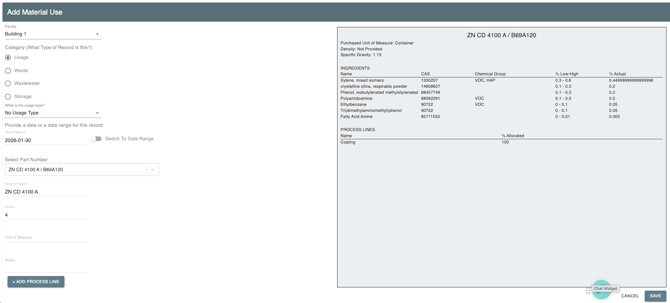
Complete the form and click Save.
For detailed step-by-step instructions and field explanations, refer to the Help Guide:
How to Add Chemical Usage, Waste, and Storage Records
Option 2: Import a Data Set
Use this method when importing multiple usage, storage, or waste records at once.
-
Prepare your spreadsheet using the required column headers.
-
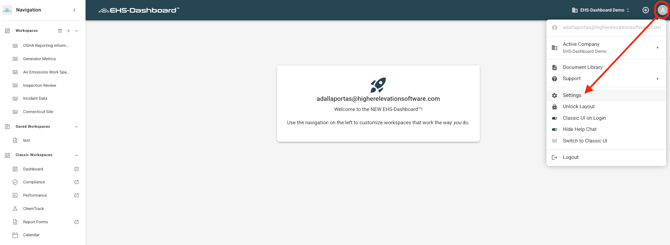
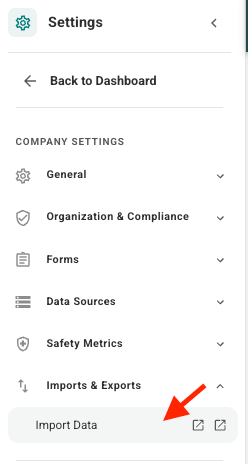
Navigate to Admin → Settings
- Choose Imports & Exports from the Side Navigation, and then Import Data
-
Upload the file and match the spreadsheet columns to the system database fields.
-
Review and complete the upload process.

For detailed formatting requirements, column matching instructions, and troubleshooting guidance, refer to: How to Add Chemical Usage, Waste, and Storage Records and the Data Import Templates.
Outcome
Once Chemical Usage, Storage, and Waste data is entered:
-
Records are stored by material and facility.
-
Data is available for filtering and review.
-
sxzdMaterial tracking remains consistent and audit-ready.