
Inspection Submission Options
Inspections can be accessed using either of the following methods.
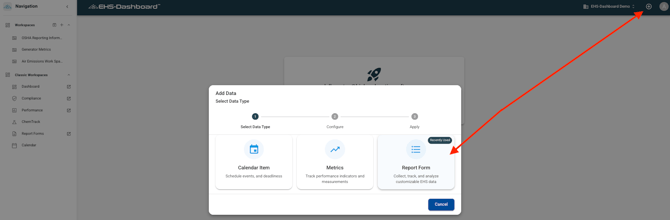
Option 1: Submit Using the + Icon
-
Log into the EHS-Dashboard.
-
Click the + icon in the upper right corner.
-
Select Calendar Item.
-
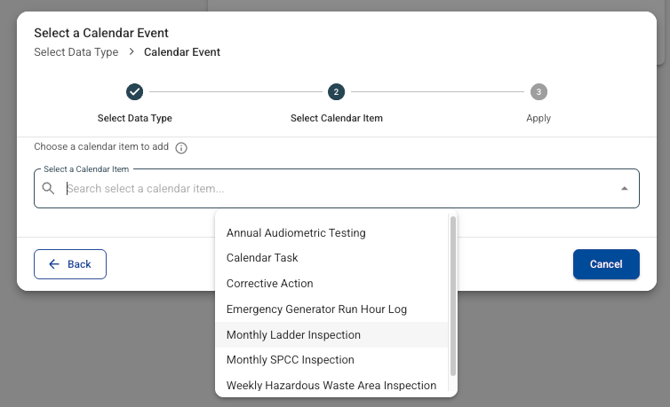
Select the scheduled Inspection from the list.
Option 2: Submit Using a Public Link or QR Code
Inspections may also be accessed using a public shareable link. This link can be posted on an internal site, shared by email, or converted into a QR code that can be printed and posted in the inspection area.
To submit using this method:
-
Click the public link or scan the QR code.
-
The Inspection Form opens automatically.
Note: For step-by-step instructions on creating public links and generating QR codes, refer to the QR Code Generation Help Guide.
Completing the Inspection
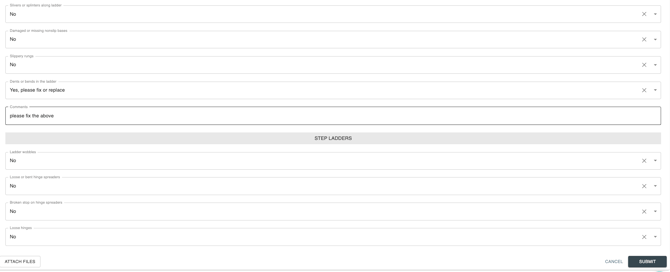
Regardless of how the form is accessed, inspectors should complete all required fields in the Inspection Form.
This includes:
-
Selecting responses for each inspection item
-
Documenting observations or notes as needed
-
Identifying deficiencies when present
Photos and supporting information should be added when available to help document conditions and support investigation and follow-up actions.
If a deficiency is identified, complete the Corrective Action Required field and provide a clear summary of the issue.
Submitting the Inspection
After completing the form, click Submit to record the inspection.
Once submitted:
The inspection is logged in the system.
Any configured CAPA records are generated automatically.
Email notifications are sent based on form logic.
The record becomes part of the inspection history for reporting and audit readiness.

Outcome
Using form submissions, public links, and QR codes ensures inspections are completed consistently, documented in real time, and automatically connected to corrective action workflows when follow-up is required.