
Note: This guide is an inspection-specific version of the Managing Tasks Help Docs. For full task management functionality, reference: Managing Tasks
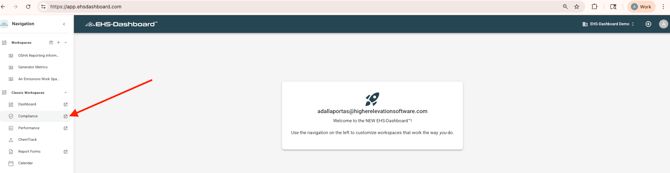
Step 1: Open or Initiate a New Inspection Calendar Item
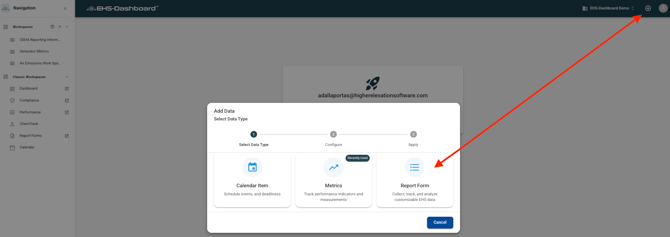
- Navigate to the Compliance Matrix requirement associated with your inspections (if applicable), OR click the “+” icon at the top of the page and then Report Form.
- Select the the select the Inspection Form from the list to open a new record.
Step 2: Configure the Inspection Details
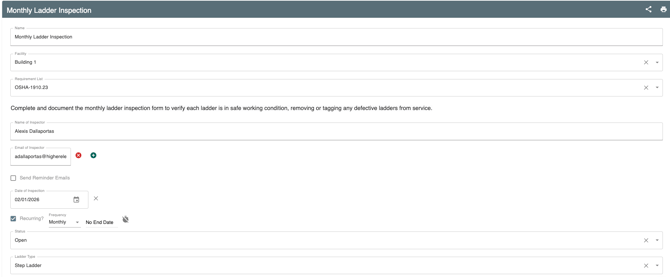
- Add or confirm the following:
Facility
Inspection Area or Department
Responsible Party - Ensure the inspection is assigned to the correct facility and owner.
Step 3: Set the Recurring Schedule
-
Configure the recurrence frequency based on how often the inspection must be completed.
Examples include:
Weekly
Monthly
Quarterly
Annual
Custom schedule
2. Confirm the recurrence pattern aligns with your operational requirements.

Step 4: Enable Reminder Notifications
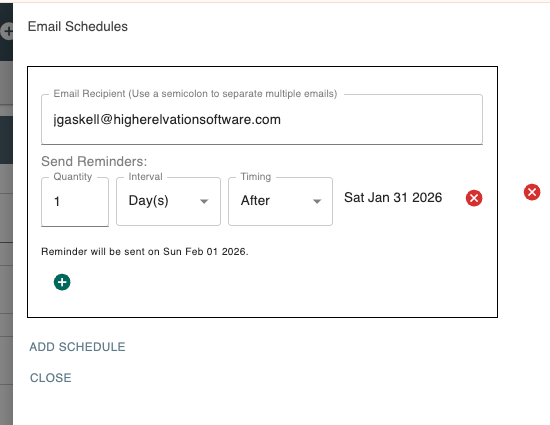
Enable reminder notifications so the responsible party receives advance notice prior to the due date, and configure overdue notifications if additional oversight is required.
Note: For step-by-step instructions on configuring email reminders and templates, refer to the Email Alerts Help Guide.
Step 5: Save and Confirm the Recurring Inspection
-
Click Save & Exit.
-
Confirm the inspection now appears:
-
-
On the assigned user’s calendar
-
In task lists
-
In recurring action item views
-
3. Verify that future inspection occurrences are generated according to the selected recurrence schedule.
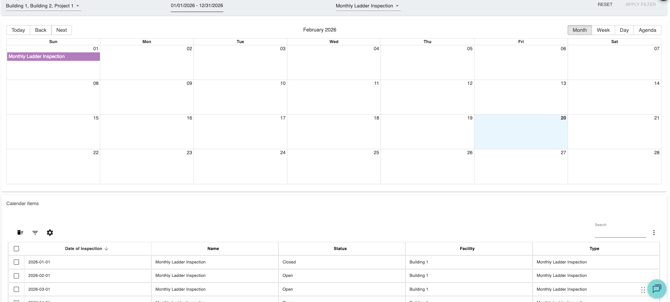
Outcome
Once scheduled, inspections recur automatically at the defined frequency, ensuring consistent completion, visibility, and accountability across facilities.