
Step 1: Enter or Create a Workspace for Compliance Tracking
-
Locate the Workspaces in the left navigation.
-
Enter an existing Compliance Workspace or click the + icon to create a new Workspace.
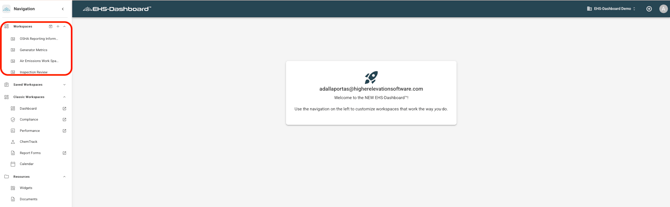
For detailed instructions on creating and managing Workspaces, refer to the How to Create a Workspace guide.
Step 2: Add a Compliance Widgets to a Workspace
Create a new widget or select an existing widget that displays the compliance data you want to monitor.
Then add that widget to the desired Workspace and arrange it as needed.
Examples of compliance-related data may include:
-
Upcoming or overdue requirements
-
Completion status by requirement or facility
-
Tasks by assigned user or team
-
Frequency-based compliance tracking
-
Trends in completed vs. incomplete requirements
For detailed instructions on creating, adding, and arranging widgets, refer to the How to Create and Configure Widgets guide.
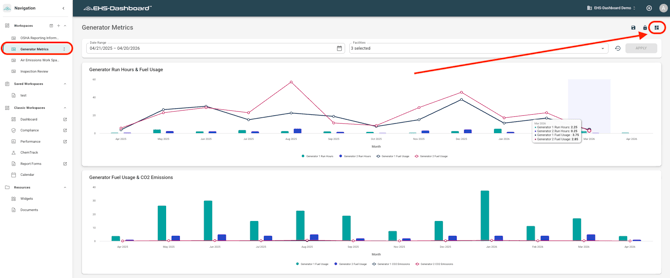
Users may create multiple widgets to visualize different aspects of compliance performance.
Step 3: Arrange and Finalize the Workspace
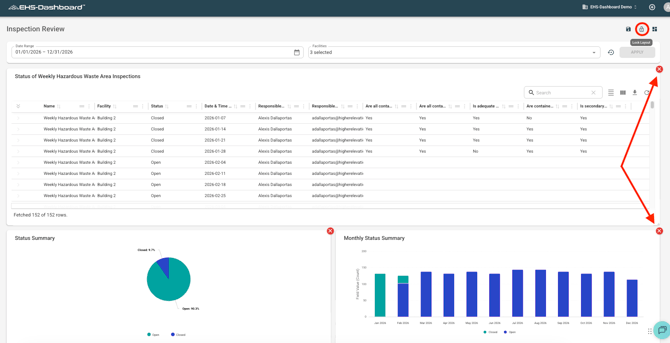
- Click the Lock icon to unlock the layout.
-
Resize and position widgets as needed.
-
Click the Lock icon again to secure the layout.
Outcome
Compliance Workspaces provide real-time visibility into requirement-related reports and action items. Dashboards allow teams to quickly identify overdue tasks and maintain ongoing compliance oversight.