
Step 1: Open a Requirement
-
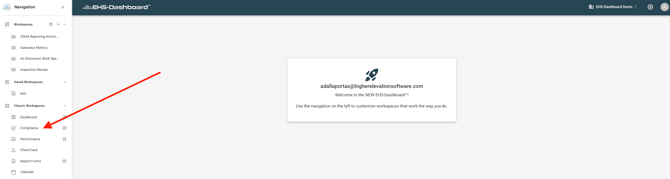
Click Compliance from the left navigation menu.
2. Use the Global Filter to select the Facility whose Requirements Matrix you would like to view and click Apply
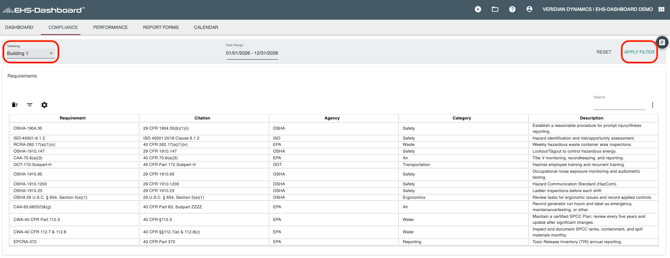
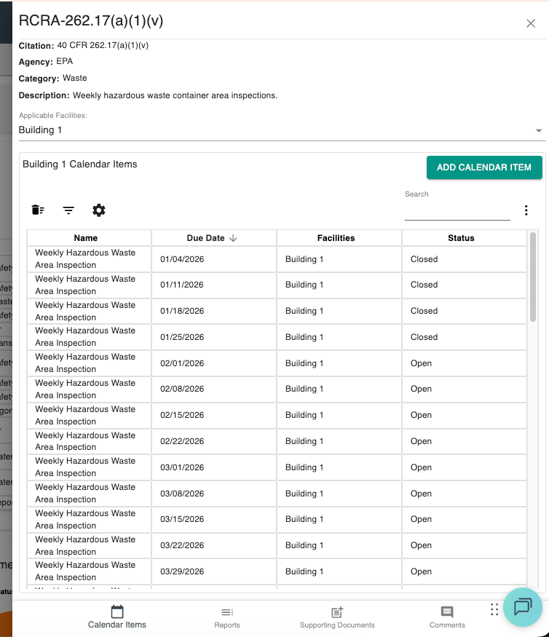
3. Select the requirement you would like to manage by clicking on its row, and a side window will open from the right.
Step 2: Create an associated Report (If the Requirement Involves Ongoing Reporting)
Use this option when the requirement includes recurring submissions, monitoring reports, inspections, or certifications.
-
Within the requirement, navigate to the Reports section by clicking on Reports at the bottom of the side panel
-
Click the 'ADD REPORT' button to create a new report.
-
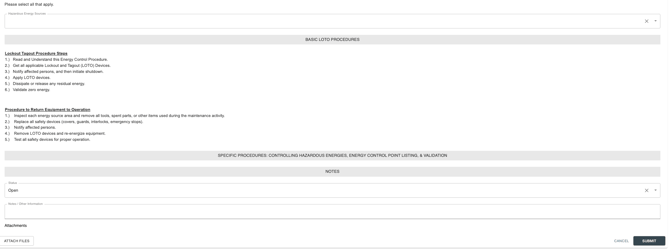
Select the Custom Form type you desire and then enter required report details and due dates.
-
Click Submit.
Step 3: Create an Action Item (If the Requirement Requires a Task)
Use this option when the requirement requires a one-time or recurring task to be completed.
-
Within the requirement, navigate to the Calendar Items section by clicking on Calendar Items at the bottom of the side panel
-
Click the 'ADD CALENDAR ITEM' button to create a new action item.
-
Select the Custom Form type you desire and then enter required action item details and due dates.
-
Click Submit.
For detailed task management instructions, refer to the Managing Tasks help guides.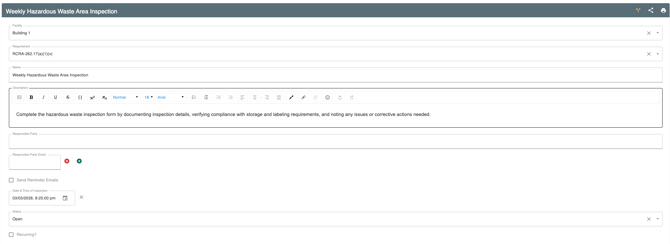
Step 4: Attach Supporting Documents and Add Notes
-
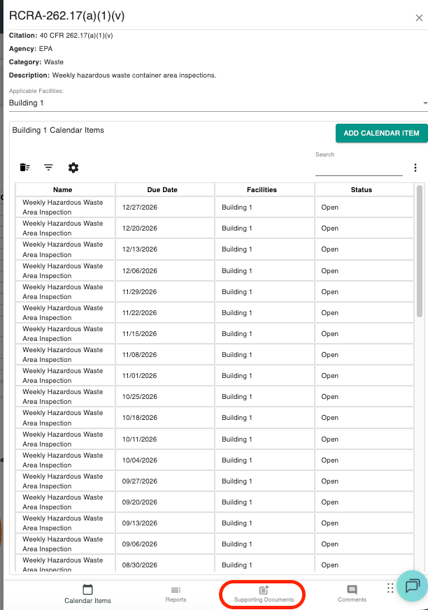
Upload supporting documents as needed by clicking on Supporting Documents at the bottom of the side panel. Ensure the files are provided with descriptive names.
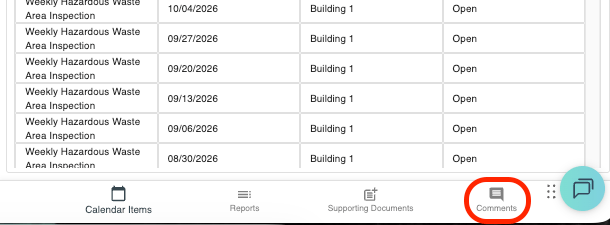
2. Enter comments related to applicability or compliance activities by clicking on Comments at the bottom of the side panel
Outcome
Each requirement can be managed through reports or action items, with supporting documentation maintained for compliance visibility and audit readiness.