
Step 1: Navigate to Email Templates
-
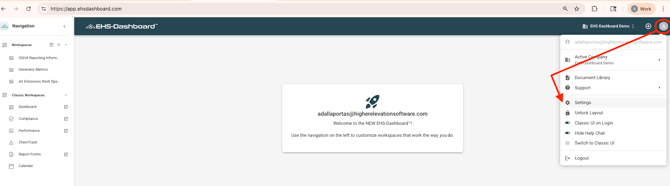
Click Account Settings in the upper right corner of the screen.
-
Click Settings.
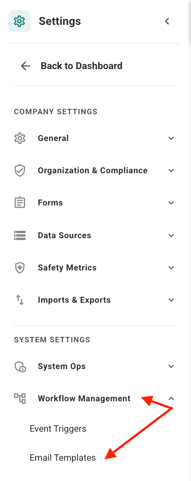
3. Under System Settings → Workflow Management, click Email Templates.
Step 2: Create or Manage an Email Template
-
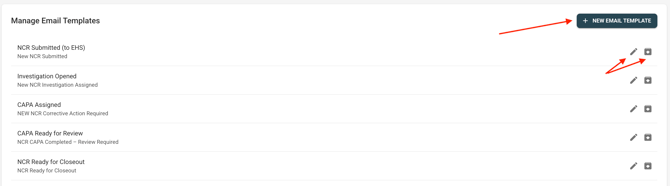
To create a new Email Template, click + New Email Template in the upper right corner of the window.
- To edit an existing template, click the pencil icon next to the desired template.
- To archive a template, click the box with the arrow icon.
Step 3: Add the Email Template Details
-
Enter a Template Name.
-
Enter the Subject line for the email.
-
In the body of the email, enter the text you would like included in the message.
-
Add dynamic content as needed using the available options:
-
Insert Dynamic Data: Use this to pull information from a form field into the email.
-
Link to Current Form: Use this to add a link to the form the email is referencing.
-
Link to Parent Form: Use this to add a link to the parent form associated with the task in the email template. For example, if the email is related to an Investigation form, this can link back to the parent Report form.
. 5. Add an email footer such as a team signature or a simple thank you.
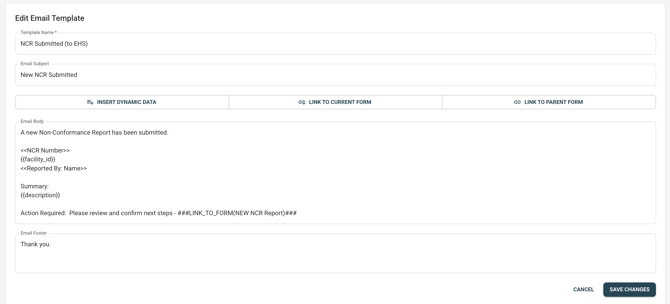
6. Click 'Save Changes' to save the template and exit the form. The template will now appear in the Manage Email Template list and be available for use when creating Event Triggers in a form.
Outcome
The Email Template is now saved and available for use in Event Trigger workflows. Templates can be reused across multiple forms to support consistent, automated notifications.