
Note: Before configuring Process Lines, ensure that Source Materials have been created in the system. For instructions on configuring materials, refer to the ChemTrack Help Guides.
Step 1: Navigate to Process Lines
-
Click Account Settings in the upper right corner of the screen.
-
Click Settings.
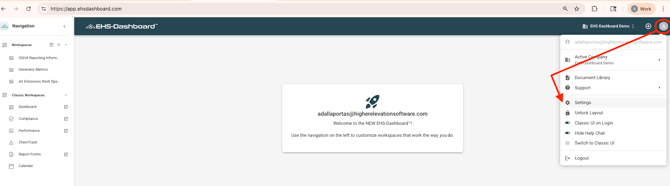
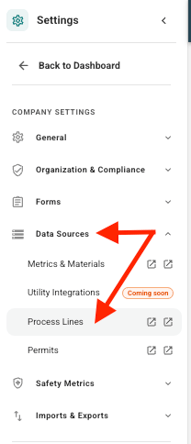
3. Select Data Sources then Click Process Lines.
Step 2: Create a Process Line
-
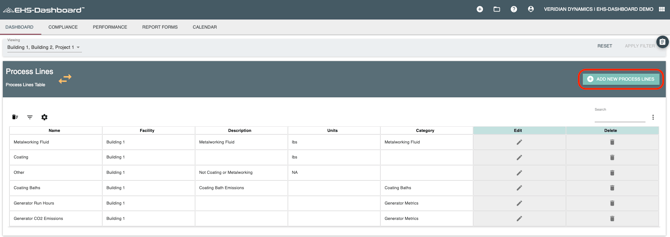
Click + Create Process Line.
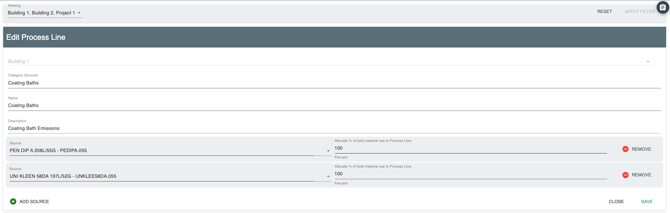
2. Select the Category.
3. Enter the Process Line Name.
4. Enter a Description if applicable.
5. Add the relevant Source Materials to the Process Line.
6. Allocate the appropriate percentage (%) of each Source Material to the Process Line.
7. Click Save.
Process Lines typically represent equipment, processes, or operational activities associated with emissions or regulated processes.
For detailed instructions on assigning sources to Process Lines, refer to the Assigning Sources to Process Lines for Air Permit Tracking help guide.
Step 3: Verify Process Line Configuration
-
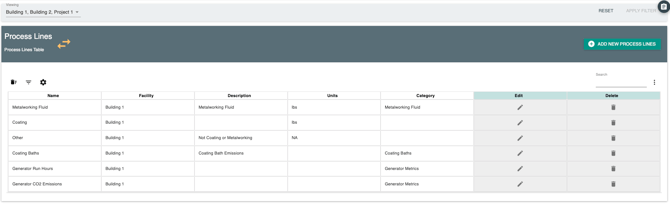
Confirm the Process Line appears in the Process Line list.
-
Open the Process Line to verify the assigned Source Materials and facility information.
Outcome
Process Lines are now configured and ready to support Air Permit tracking. Once created, they can be used when configuring Air Permits and when entering operational or chemical usage data.