
Step 1: Access the Regulatory Matrix for Editing
-
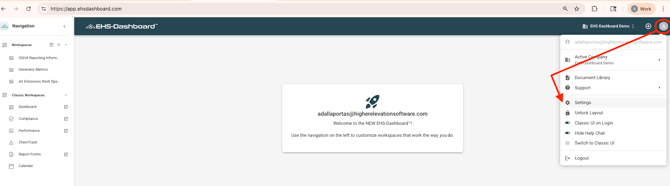
Click Account Settings in the upper right corner of the screen.
-
Click Settings.
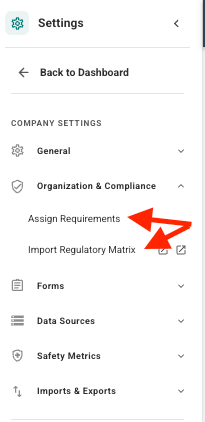
3. In Settings:
-
If manually configuring requirement applicabilities, click Assign Requirements.
-
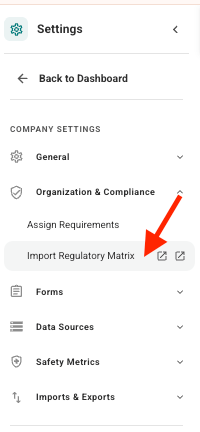
If performing a bulk upload of requirements, click Import Regulatory Matrix.
Step 2: Set Requirement Applicability (Manual Method)
-
Click Assign Requirements.
-
Locate the requirement you would like to designate as applicable.
-
Use the dropdown menu in the Applicability column to select Applicable or Not Applicable.
-
Use the search bar to locate specific requirements as needed.
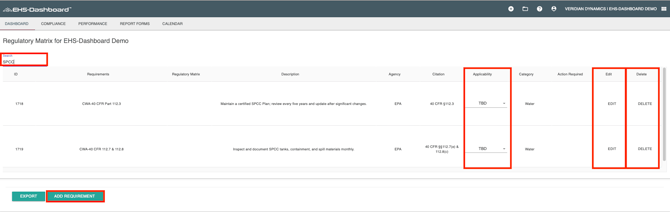
NOTE: Clicking a column header will sort the table, which can help when reviewing multiple requirements.
Changes to Applicability are saved automatically. Once selections are made, you may navigate away from the page.
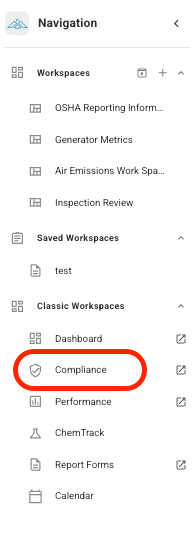
When a requirement is marked Applicable, it becomes part of your active compliance program and will appear in the Compliance section of the system.
Step 3: Configure or Update Requirements Using Bulk Import
Use this method when making large-scale changes to applicability or when adding multiple requirements at once.
-
Click Import Regulatory Matrix from the Settings page.
2. Select the appropriate Import Level and Facility.
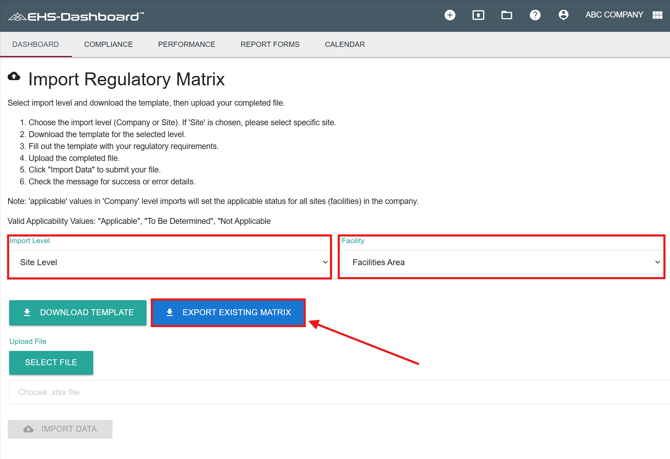
3. Export the existing Matrix.
4. Update applicability or requirement details offline.
5. Re-import the revised file to apply changes.
Note: When editing the exported file, maintain all column headers and IDs exactly as provided to ensure successful mapping during import.
For detailed instructions on exporting, editing, and re-importing a Regulatory Matrix, refer to the Updating and Managing Your Regulatory Matrix guide.
Step 4: Verify Matrix Configuration
-
Navigate to the Compliance section from the top navigation menu.
-
Open the Requirements Matrix.
-
Confirm that Applicable requirements appear correctly for the selected facility.
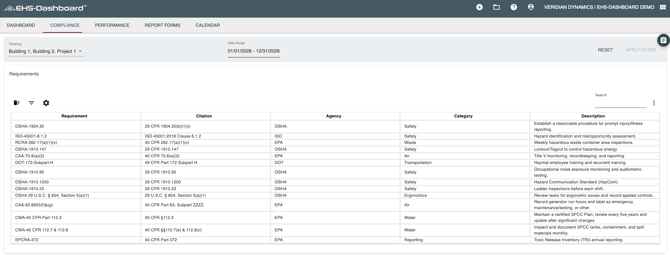
Outcome
The Requirements Matrix is now configured and ready to manage legal and other compliance obligations. Requirements marked Applicable can now be managed through reports, action items, supporting documents, and notes within the Compliance section.