
Note: Before configuring Process Lines, ensure that Source Materials have been created in the system. For instructions on configuring materials, refer to the ChemTrack Help Guides.
Step 1: Navigate to Permit Configuration
-
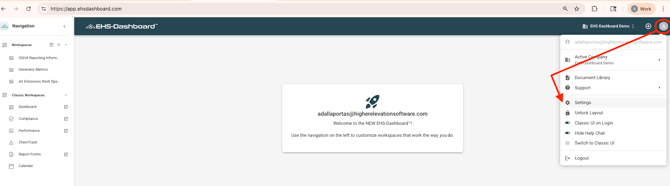
Click Account Settings in the upper right corner of the screen.
-
Click Settings.
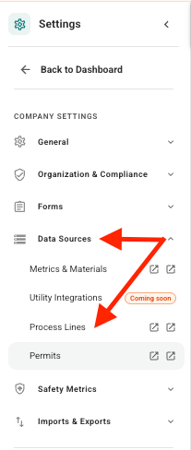
3. Select Data Sources then Click Permits.
Step 2: Create a New Permit
-
Click + Create Permit

2. Enter the following information about the permit:
- Facility
- Permit Name
- Permit Number (if applicable)
- Date Issued
- Date Expires (if applicable)
- Description (if needed)
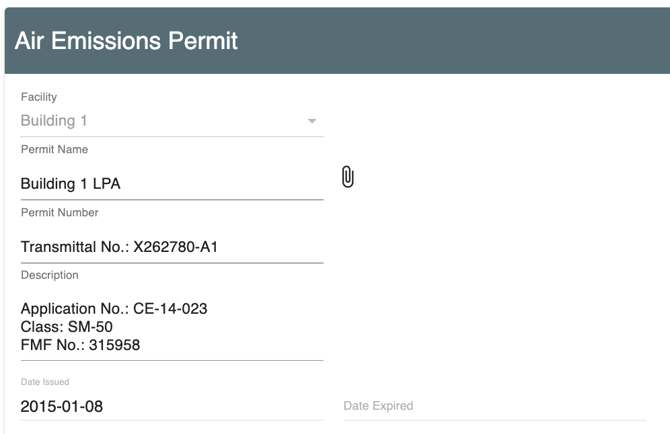
Note: You can also attach the permit document to the record by clicking the paperclip icon next to the Permit Name field, uploading the file, entering a descriptive document name such as Company A Air Permit #321654X, and clicking Upload.
Step 3: Add Emission Units and Thresholds
-
Beneath the permit admin information, enter the Emission Unit Name.
-
Click the + icon in the lower left corner of the permit configuration page to add the Emission Unit.
-
Once the Emission Unit has been added, click the ADD LIMIT button in the lower right corner of that Emission Unit field.
-
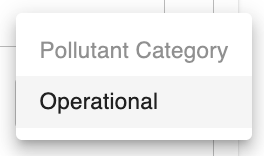
Select the limit Category from the dropdown list.
-
Enter the applicable limit value(s) manually.
-
Repeat as needed to add both Pollutant Category limits and Operational Limits to the Emission Unit.

Step 4: Associate Process Lines with Emission Units
-
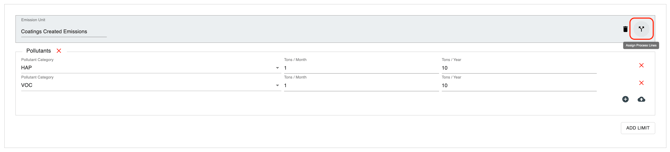
Click the diverging arrow icon in the upper right corner of the Emission Unit field.
-
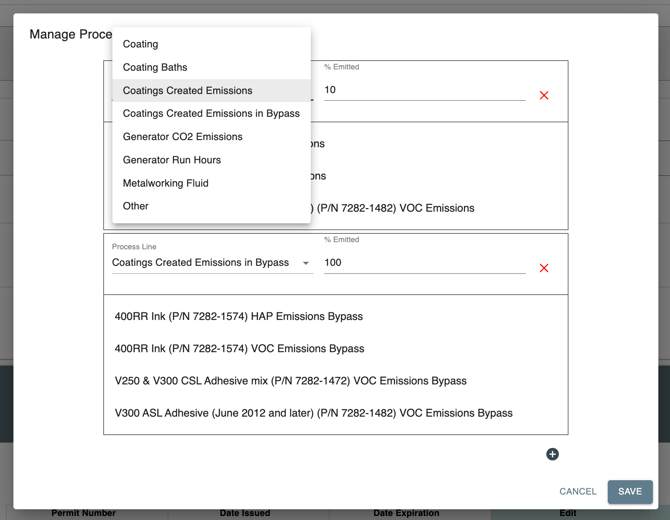
In the Manage Process Lines box, select the Process Line you would like to associate with that Emission Unit.
-
Enter the % emitted from that Process Line.
-
To add another Process Line to the same Emission Unit, click the + icon in the lower right corner of the Manage Process Lines box.
-
Repeat until all applicable Process Lines have been added.
-
Click Save in the lower right corner of the Manage Process Lines box.
-
When all Process Lines have been appropriately allocated to Emission Units, click Save to exit the Permit configuration form.
Note: The % emitted should reflect the percentage of emissions actually emitted from that Process Line. For example, if a pollution control device removes 98% of pollutants, the % emitted would be 2%.
If Process Lines have not yet been configured, refer to the How to Create and Configure Process Lines help doc.
Step 5: Test the Permit Configuration
- Add material or metric data to the EHS-Dashboard that is tracked by the Permit.
- Confirm the data is being captured against the appropriate Emission Unit and associated limits.
- Review the Permit record to ensure the tracked data is flowing into the configuration as expected.
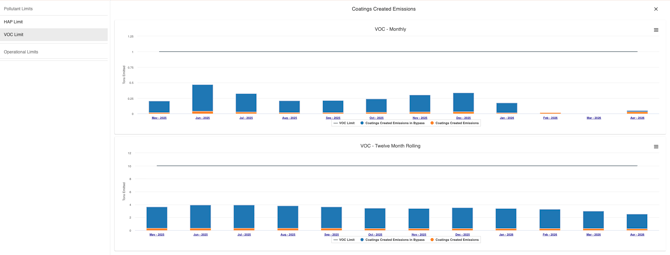
For instructions on entering material data, refer to the How to Track Chemical Usage, Storage & Waste Data help document.
Outcome
Permits are now configured with Emission Units, thresholds, and Process Line associations. Operational and chemical usage data can now be tracked against emissions and operational limits to support air permit compliance monitoring.