
Step 1: Log Into the EHS-Dashboard and Navigate to Sources
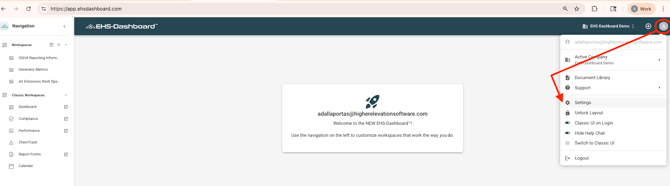
- Log into the EHS-Dashboard.
- Navigate to the Admin section.
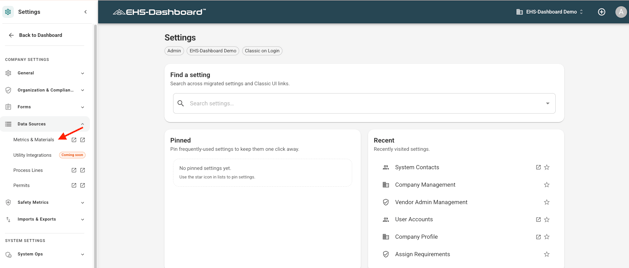
- Select Data Sources -> Metrics & Materials. This will take you to the Sources list.
Step 2: Create Individual Source Materials (Recommended for 1–3 Chemicals)
If you are configuring a small number of materials, create them individually. For detailed field-level instructions, refer to the How to Configure a Source Material Help Guide.
-
Click + ADD NEW -> Material.

-
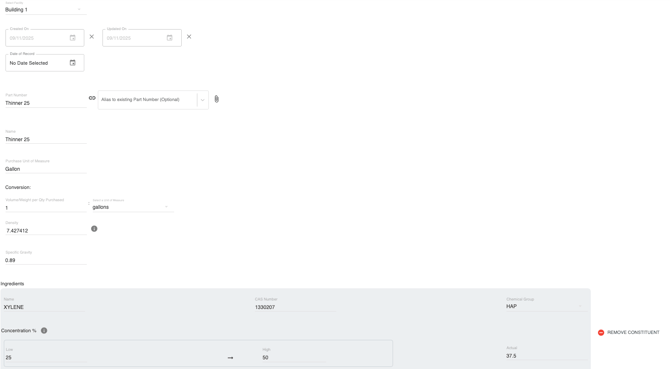
Enter the required material information including:
-
Facility Association
-
Part Number
-
Material Name
-
Purchase Units of Measure
-
Density/Specific Gravity
-
Ingredients (CAS numbers, % and chemical groups)Enter the required material information, including:
-
NOTE: Ensure naming conventions are consistent to prevent duplicate records.
3. Click Save
Step 3: Use Bulk Upload for Multiple Materials (Recommended for Larger Sets)
If configuring more than a few materials, use the Bulk Source Material Configuration process.
-
Download and populate the Materials Create Template
- Download and populate the Constituents Setup Template to associate constituents with materials
- Upload the completed files into the system.
Refer to the following Help Guides for step-by-step instructions:
Step 1 of Bulk Source Material Configuration: How to Import a Materials Create Spreadsheet
Step 2 of Bulk Source Material Configuration: How to Import a Constituents List
Step 4: Attach the Safety Data Sheet (SDS)
After creating and saving the material record, reopen the material form and:
-
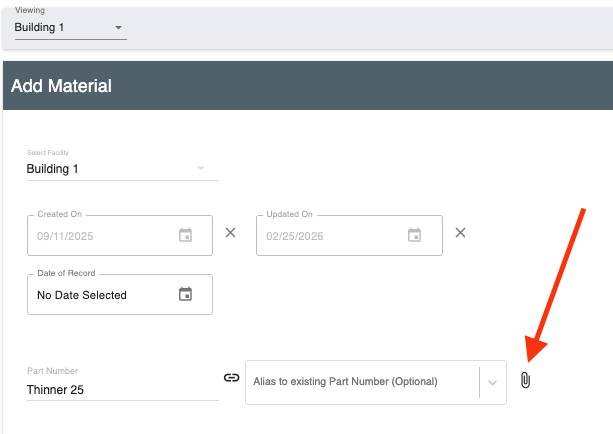
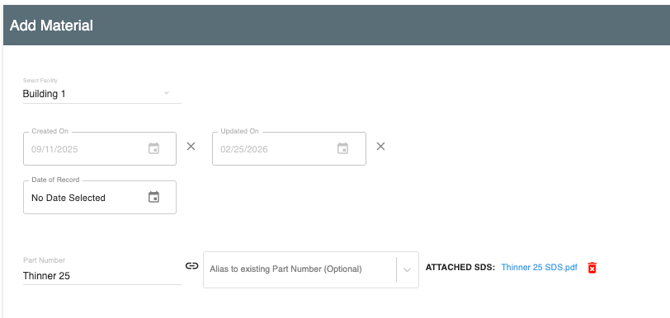
Click the paper clip icon next to the Part Number field.
-
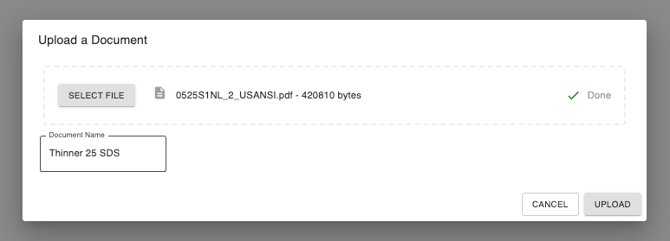
Upload the SDS file.
-
Enter a clear and specific document name.
-
Click Upload.
-
Once the SDS is attached to the record, scroll to the bottom of the material form and click Save.
Step 5: Save and Verify Material Records
After creating or importing materials:
-
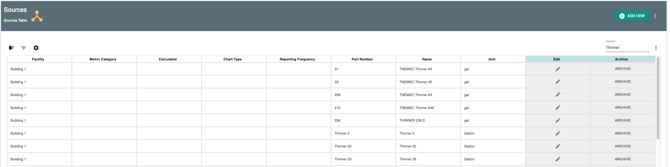
Confirm each material appears in the Source Materials list.
-
Verify units of measure and required fields are correct.
-
Confirm the SDS is properly attached to the material record.
-
Review for duplicates or inconsistencies.
Outcome
Once configured, Source Materials are available for chemical tracking, usage entry, waste association, and reporting workflows within the EHS-Dashboard.