
At a basic level, an Event Trigger means: When something happens → the system does something.
What This Workflow Helps You Configure:
-
When a Parent Form is saved - > An email is sent to EHS and an Investigation Form is created
-
When an Investigation Form is saved -> The investigator is notified
-
When an Investigation is completed and corrective action is required -> A Corrective Action Form is created and the responsible person is notified
-
When a Corrective Action is completed -> EHS is notified for review
-
When a Corrective Action is approved -> The responsible person is notified and EHS is notified to close the Parent Form
-
It is reccommended that these event triggers are added to the Facility field
-
Other fields are only used inside the logic conditions
Before You Begin make sure you have:
-
A Parent Form (e.g. Inspection, Incident, NCR Form)
-
An Investigation Form
-
A Corrective Action Form
NOTE: For additional information about creating custom forms, please refer to our Custom Forms help documents.
Step 1: Navigate to Custom Forms
-
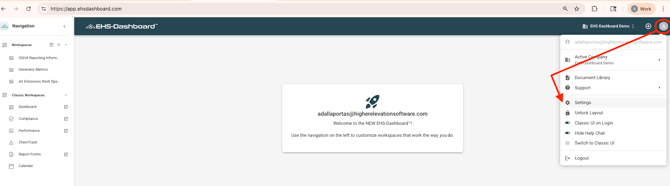
Click Account Settings in the upper right corner of the screen.
-
Click Settings.
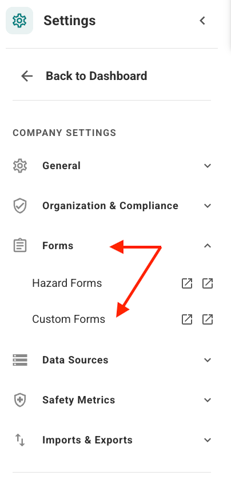
3. Click Forms -> Custom Forms
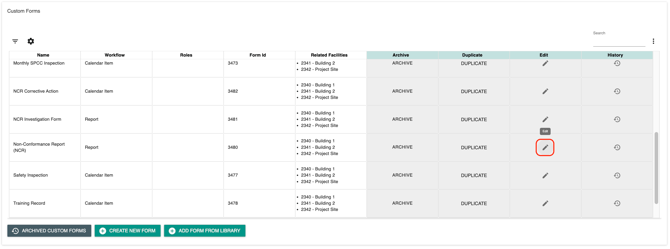
 4. Select the form you want to configure. Click the pencil icon to open the form for editing.
Step 2: Add Event Triggers to the Parent Form
Where to configure: Parent Form → Facility field
- Open the Parent Form
- Click the 'Facility' form field
- Click 'Add Logic'
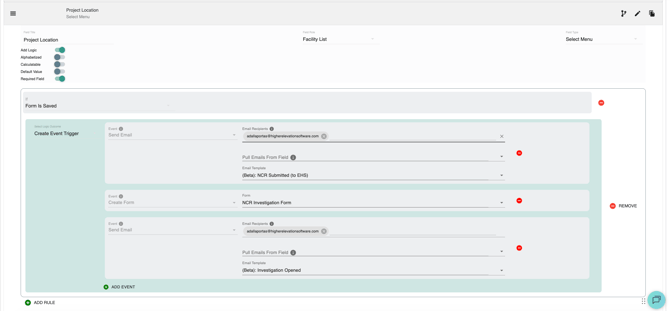
- Set Condition: 'Form Saved'
- Choose 'Create Event Trigger'
- To send an email notification when a new Parent Form is submitted:
- Select: 'Send Email'
- Enter the Email Recipients:
- Manually enter addresses and then press Enter on your keyboard after typing each email; and/or
- Pull Emails From Field from within the form (e.g. Responsible Party Email field)
- Choose an Email Template to send (Note: Refer to the How to Create Email Templates for Event Trigger Workflows help document)
- Scroll to the bottom and click 'Save' and 'Save & Keep Working'
- Click on '+ Add Event' to create a related Investigation Form when the form is saved
- Choose 'Create Form'
- Choose the form you would like to be created from the dropdown list (e.g. Investigation Form)
- Scroll to the bottom and click 'Save' and 'Save & Keep Working'
- To send an email letting a responsible party know when a new investigation form has been assigned to them, choose 'Send Email' as the Event
- Select: 'Send Email'
- Enter the Email Recipients
- Manually enter addresses and then press Enter on your keyboard after typing each email; and/or
- Pull Emails From Field from within the form (e.g. Responsible Party Email field)
- Choose an Email Template to send
- Scroll to the bottom and click 'Save' and 'Save & Exit' when you have added all of the event triggers desired
Results:
-
A notification is sent indicating the Parent Form was submitted
-
An Investigation Form is created
-
The Investigation Form Responsible Party receives a notification email
Step 3: Add Event Triggers to the Investigation Form
Where to configure: Investigation Form → Facility field
- Open the Investigation Form
- Click the 'Facility' form field
- Click 'Add Logic'
- Set 2 Conditions:
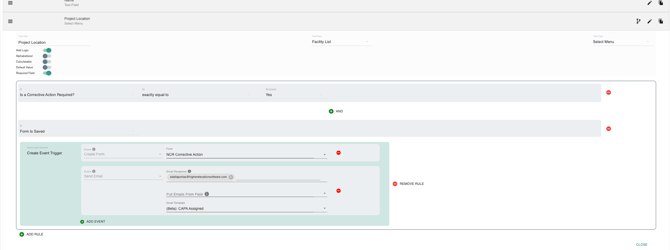
- Condition 1 - IF 'Is a Corrective Action Required?' IS 'exactly equal to' ANSWER 'Yes'
- Click '+ AND'
- Condition 2 - IF 'Form is Saved'
- Then choose 'Create Event Trigger' to configure the triggers
- Add a 'Create Form' event by choosing the desired corrective action form from the list
- Click '+ ADD EVENT'
- Add a 'Send Email' event by adding email recipients as described above and choosing the appropriate Email Template from the list
- Set 2 Conditions:
- Scroll to the bottom and click 'Save' and 'Save & Exit' when you have added all of the event triggers desired
Results:
-
The Corrective Action Responsible Party receives a notification email
Step 4: Add Event Triggers to the Corrective Action Form
Where to configure: Corrective Action Form → Facility field
- Open the Investigation Form
- Click the 'Facility' form field
- Click 'Add Logic'
- Set 2 Rules:
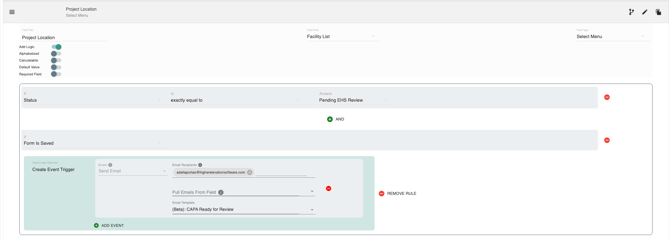
- Rule 1: Notify EHS when CAPA is ready for review
- Condition 1 - IF 'Status' IS 'exactly equal to' ANSWER '[Pending EHS Review]'
- Click '+ AND'
- Condition 2 - IF 'Form is Saved'
- Next choose 'Create Event Trigger' for the Logic Outcome
- Choose 'Send Email' as the Event
- Enter the Email Recipients:
- Manually enter addresses and then press Enter on your keyboard after typing each email; and/or
- Pull Emails From Field from within the form (e.g. Responsible Party Email field)
- Choose an Email Template to send
- Scroll to the bottom and click 'Save' and 'Save & Keep Working'
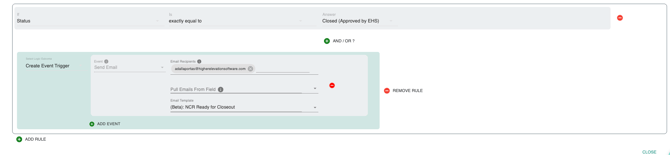
- Rule 2: Notify when CAPA is approved
- Click on '+ Add Event' to create a related Investigation Form when the form is saved
- Choose 'Send Email' as the Event
- Enter the Email Recipients:
- Manually enter addresses and then press Enter on your keyboard after typing each email; and/or
- Pull Emails From Field from within the form (e.g. Responsible Party Email field)
- Choose an Email Template to send
- Rule 1: Notify EHS when CAPA is ready for review
- Scroll to the bottom and click 'Save' and 'Save & Exit' when you have added all of the event triggers desired
- Set 2 Rules:
Results:
-
A notification is sent when a Corrective Action is ready for approval
-
A notification is sent when a Corrective Action has been approved and the Parent Report can be closed out.
Step 5: Test your Workflow
It is recommended that you complete one full test before rollout
-
Save a Parent Form: Confirm EHS receives an email and an Investigation is created
-
Save an Investigation: Confirm the investigator receives an email
-
Complete an Investigation with Corrective Action Required = Yes: Confirm a Corrective Action is created and the responsible person is notified
-
Complete a Corrective Action: Confirm EHS receives a review email
-
Approve a Corrective Action: Confirm the responsible person receives a closure email and EHS is notified
This workflow creates a clear path from Parent Form to Investigation to Corrective Action. Each step is triggered automatically, reducing manual follow-up and improving consistency.